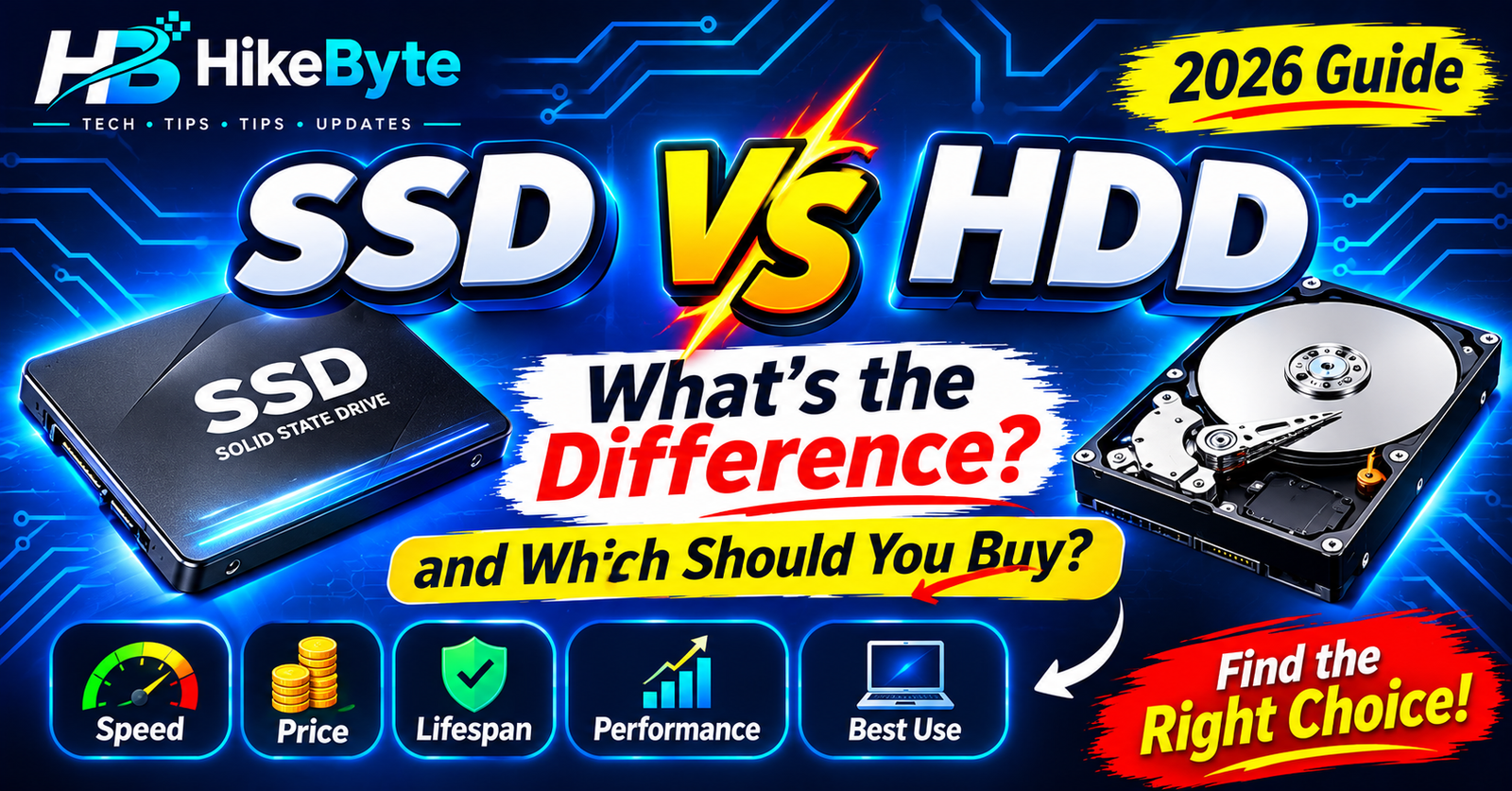
When you shop for a laptop or upgrade your computer, you will see two terms everywhere: SSD and HDD. They are both types of storage — the place where your files, apps, and Windows itself live. But they work very differently, and the difference affects how fast your computer feels every single day.
In this guide, we explain SSD vs HDD in simple words, so you can decide which one is right for you.
What Is an HDD?
HDD stands for Hard Disk Drive. It is the older type of storage, and it works a bit like a record player.
Inside an HDD, there are spinning metal disks (called platters) and a small arm that moves across them to read and write data. Because it has moving parts, it takes a little time for the arm to find what you asked for.
HDDs have been around for decades. They are reliable, well-tested, and cheap — especially when you need a lot of space.
What Is an SSD?
SSD stands for Solid State Drive. Instead of spinning disks, it stores data on flash memory chips — similar to the storage inside your phone or a USB stick, just much faster and bigger.
Because there are no moving parts, an SSD can find your data almost instantly. That is the whole secret behind the speed difference.
SSD vs HDD: The Key Differences
Speed
This is the biggest difference. An SSD can be several times faster than an HDD at everyday tasks:
- Starting your computer: an SSD often boots in seconds; an HDD can take a minute or more.
- Opening programs: apps on an SSD open almost immediately.
- Copying files: large files transfer much faster on an SSD.
If your laptop feels slow, switching from an HDD to an SSD is usually the single most noticeable upgrade you can make.
Durability
An HDD has moving parts, so a drop or a bump can damage it and risk your data. An SSD has no moving parts, so it handles shocks and movement much better — one reason nearly every modern laptop uses one.
Noise and Heat
HDDs spin and click quietly; you may hear them working. SSDs are completely silent and run cooler, which also helps battery life in laptops.
Price and Capacity
This is where HDDs still win. Per gigabyte, HDDs are much cheaper. If you need a huge amount of storage — say 2TB or more for videos and backups — an HDD costs far less than an SSD of the same size.
SSDs have become much cheaper over the years, but for very large storage, HDDs remain the budget option.
Lifespan
Both types last for years under normal use. HDDs can wear out mechanically over time, while SSDs wear out based on how much data is written to them. For everyday users, either one will normally outlive the computer it is in — just keep backups either way, because any drive can fail without warning.
SSD vs HDD at a Glance
| SSD | HDD | |
|---|---|---|
| Speed | Much faster | Slower |
| Moving parts | None | Spinning disks |
| Noise | Silent | Slight hum/clicks |
| Durability | Better against drops | More fragile |
| Price per GB | Higher | Lower |
| Best for | Everyday speed | Cheap bulk storage |
Which Should You Buy?
Choose an SSD if:
- You want a fast, responsive computer for daily use.
- You are buying a laptop (almost all good laptops use SSDs now).
- You are upgrading an old, slow computer — this is the upgrade that makes the biggest difference.
Choose an HDD if:
- You need a lot of storage on a tight budget (for example, a backup drive or a media collection).
- Speed does not matter much for that drive — like storing movies you watch occasionally.
The best of both: Many people use a smaller SSD for Windows and their main programs, plus a larger HDD for files and backups. You get speed where it matters and cheap space where it doesn’t.
How to Check What Your Computer Has
On Windows, open Task Manager (Ctrl + Shift + Esc), go to the Performance tab, and click on Disk. It will tell you whether your drive is an SSD or HDD. If it says HDD and your computer feels slow, an SSD upgrade is worth considering — any repair shop can do it.
Final Thoughts
Think of it like this: an HDD is a library where someone has to walk to the shelf to fetch each book. An SSD is a library where every book is instantly in your hand. For everyday speed, the SSD wins easily. For cheap, massive storage, the HDD still has a place.
For most people buying a computer in 2026, the answer is simple: get an SSD — and add an HDD later only if you need lots of extra space.
Frequently Asked Questions
Is an SSD really worth it over an HDD?
For your main drive, yes — it is the most noticeable upgrade for everyday speed: faster boot, faster apps, and a more responsive computer overall.
Can I replace my HDD with an SSD?
In most desktop PCs and many laptops, yes. Check your laptop model online first — some very thin laptops have storage that cannot be replaced.
Do SSDs fail faster than HDDs?
No, not in normal use. Both can fail eventually, which is why backups matter no matter which type you use.
How much SSD storage do I need?
For everyday use, 256GB is workable but tight; 512GB is the comfortable choice for most people. If you store lots of games or videos, consider 1TB or add an HDD for extra space.
Can I use an SSD and an HDD together?
Yes. A common setup is an SSD for Windows and programs, plus an HDD for large files and backups — speed and space in one computer.
Leave a Reply