Category: How-To Guides

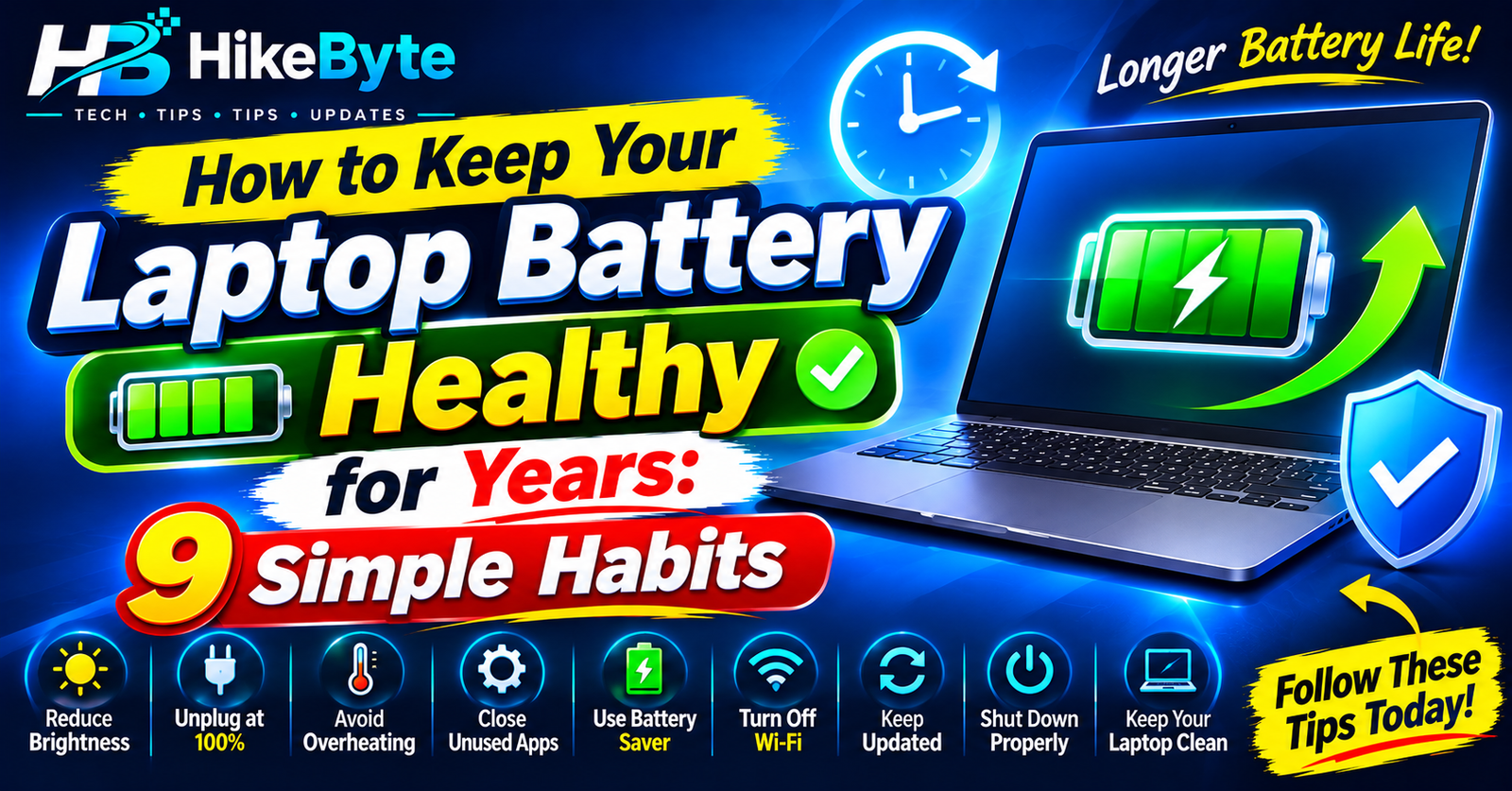
  • How to Keep Your Laptop Battery Healthy for Years

    How to Keep Your Laptop Battery Healthy for Years

    Does your laptop battery drain faster than it used to? Do you find yourself always hunting for a charger? You are not alone — but the good news is that a few simple habits can make a real difference.

    Most laptops today use lithium-ion batteries. They wear out gradually with use, and that is normal. But how you charge and use your laptop every day decides whether the battery stays strong for years or fades quickly. Here are 9 habits that actually help.

    1. Avoid Heat — It Is the Battery’s Worst Enemy

    Heat damages batteries more than anything else. Keep your laptop off beds, blankets, and sofas that block its air vents, and never leave it in a hot car or in direct sunlight. If your laptop feels very hot during normal use, give it a break and let it cool down. A cooler laptop means a longer-lasting battery.

    2. Don’t Obsess Over 100% — But Avoid Extremes

    You do not need to unplug the moment you hit 100%. Modern laptops stop charging when full. But batteries are happiest when they are not constantly sitting at either extreme.

    As a rough guide:

    • Try not to let your battery drop to 0% regularly.
    • If you can, keep it roughly between 20% and 80% for daily use.
    • An occasional full charge or full drain is fine — just don’t make it a daily habit.

    Don’t stress about perfect numbers. Avoiding the extremes most of the time is enough.

    3. Use Battery Saver Mode

    Windows has a built-in Battery Saver mode that reduces background activity and screen brightness when your battery gets low. Turn it on from Settings > System > Power & battery, or click the battery icon in the taskbar. It is an easy way to stretch your remaining charge without doing anything else.

    4. Lower Your Screen Brightness

    Your screen is usually the biggest battery drain. Lowering brightness even a little can add noticeable time. Use the brightness keys on your keyboard or the slider in quick settings, and turn on automatic brightness if your laptop supports it.

    5. Close What You Are Not Using

    Every open program and browser tab uses power — especially video calls, games, and heavy websites. Close apps you are not using, and keep your browser tabs under control. If you notice your fan running loudly, something is working your laptop (and battery) hard.

    6. Turn Off Features You Don’t Need

    Bluetooth, Wi-Fi, and keyboard backlighting all sip power. If you are not using Bluetooth, switch it off. If you are working offline, you can even turn Wi-Fi off for a while. Small savings add up over a full day.

    7. Keep Windows and Drivers Updated

    Battery improvements often come through software updates. Go to Settings > Windows Update and install pending updates, and check your laptop maker’s app (like Lenovo Vantage, HP Support Assistant, or Dell Update) for battery and BIOS updates. These sometimes include fixes that directly improve battery life.

    8. If You Mostly Use It Plugged In, Help the Battery Rest

    If your laptop spends most of its life on a desk plugged in, check whether your laptop maker offers a battery charge limit (often called “battery conservation mode” or similar). Setting a limit of around 60–80% for plugged-in use reduces wear over months and years. Not every laptop has this option, but many do — check your maker’s settings app.

    9. Store It Right If You Won’t Use It for a While

    Going away for weeks? Don’t store the laptop fully charged or fully empty — around 50% is ideal. Keep it in a cool, dry place. A battery left at 0% for months can become very hard to revive.

    How to Check Your Battery’s Health

    On Windows, you can generate a battery report in a minute:

    1. Right-click the Start button and open Terminal (or search for cmd).
    2. Type powercfg /batteryreport and press Enter.
    3. Open the report file it creates — it shows your battery’s original capacity versus its current capacity.

    If your current capacity is much lower than the original (for example, under 70–80%), the battery is worn and a replacement may be worth considering.

    When Should You Replace the Battery?

    Consider a replacement if your laptop dies very quickly even after these habits, shuts down suddenly at 20–30%, or the battery is swollen (stop using it and get it replaced right away — a swollen battery is a safety issue). For most laptops, a replacement battery is far cheaper than a new laptop.

    Final Thoughts

    Battery health is not about one magic trick — it is about small, everyday habits. Keep it cool, avoid the extremes, use battery saver, and close what you don’t need. Do that, and your laptop battery will serve you well for years.

    Related reading on HikeByte: [How to Speed Up a Slow Laptop in 2026] · [SSD vs HDD: What’s the Difference and Which Should You Buy?] · [What Is a VPN and Do You Really Need One?]
    (Link these once the related posts are published.)

    Frequently Asked Questions

    Is it bad to leave my laptop plugged in all the time?
    Modern laptops stop charging at 100%, so it is not dangerous. But for long-term health, using a charge limit (around 60–80%) is better if your laptop offers one — and avoid heat while plugged in.

    Should I let my battery drain to 0% before charging?
    No. That was advice for very old battery types. For today’s lithium-ion batteries, frequent full drains actually wear them out faster. Charge when convenient, ideally before it gets very low.

    Does fast charging damage the battery?
    Fast charging creates a bit more heat, which adds wear over time, but the effect is small for most users. If you are not in a hurry, standard charging is gentler.

    How long should a laptop battery last?
    Most laptop batteries stay healthy for around 3–5 years of regular use, depending on habits and heat. After that, capacity gradually drops — which is normal.

    Can a software update really improve battery life?
    Yes, sometimes. Updates can fix bugs that drain power and improve how Windows manages background apps, so keeping your system updated is worth it.
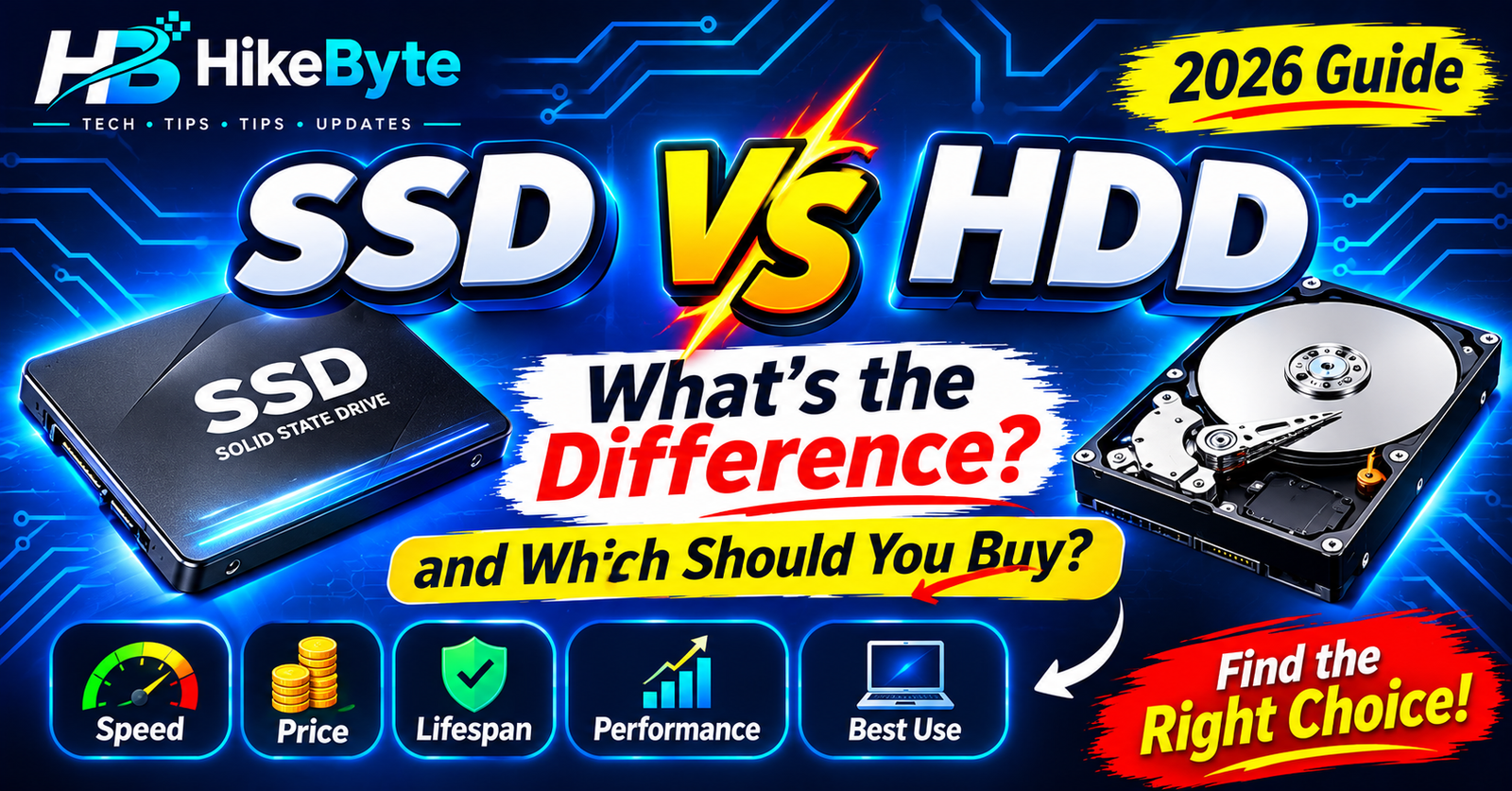
  • SSD vs HDD: What’s the Difference and Which Should You Buy?

    SSD vs HDD: What’s the Difference and Which Should You Buy?

    When you shop for a laptop or upgrade your computer, you will see two terms everywhere: SSD and HDD. They are both types of storage — the place where your files, apps, and Windows itself live. But they work very differently, and the difference affects how fast your computer feels every single day.

    In this guide, we explain SSD vs HDD in simple words, so you can decide which one is right for you.

    What Is an HDD?

    HDD stands for Hard Disk Drive. It is the older type of storage, and it works a bit like a record player.

    Inside an HDD, there are spinning metal disks (called platters) and a small arm that moves across them to read and write data. Because it has moving parts, it takes a little time for the arm to find what you asked for.

    HDDs have been around for decades. They are reliable, well-tested, and cheap — especially when you need a lot of space.

    What Is an SSD?

    SSD stands for Solid State Drive. Instead of spinning disks, it stores data on flash memory chips — similar to the storage inside your phone or a USB stick, just much faster and bigger.

    Because there are no moving parts, an SSD can find your data almost instantly. That is the whole secret behind the speed difference.

    SSD vs HDD: The Key Differences

    Speed

    This is the biggest difference. An SSD can be several times faster than an HDD at everyday tasks:

    • Starting your computer: an SSD often boots in seconds; an HDD can take a minute or more.
    • Opening programs: apps on an SSD open almost immediately.
    • Copying files: large files transfer much faster on an SSD.

    If your laptop feels slow, switching from an HDD to an SSD is usually the single most noticeable upgrade you can make.

    Durability

    An HDD has moving parts, so a drop or a bump can damage it and risk your data. An SSD has no moving parts, so it handles shocks and movement much better — one reason nearly every modern laptop uses one.

    Noise and Heat

    HDDs spin and click quietly; you may hear them working. SSDs are completely silent and run cooler, which also helps battery life in laptops.

    Price and Capacity

    This is where HDDs still win. Per gigabyte, HDDs are much cheaper. If you need a huge amount of storage — say 2TB or more for videos and backups — an HDD costs far less than an SSD of the same size.

    SSDs have become much cheaper over the years, but for very large storage, HDDs remain the budget option.

    Lifespan

    Both types last for years under normal use. HDDs can wear out mechanically over time, while SSDs wear out based on how much data is written to them. For everyday users, either one will normally outlive the computer it is in — just keep backups either way, because any drive can fail without warning.

    SSD vs HDD at a Glance

    SSDHDD
    SpeedMuch fasterSlower
    Moving partsNoneSpinning disks
    NoiseSilentSlight hum/clicks
    DurabilityBetter against dropsMore fragile
    Price per GBHigherLower
    Best forEveryday speedCheap bulk storage

    Which Should You Buy?

    Choose an SSD if:

    • You want a fast, responsive computer for daily use.
    • You are buying a laptop (almost all good laptops use SSDs now).
    • You are upgrading an old, slow computer — this is the upgrade that makes the biggest difference.

    Choose an HDD if:

    • You need a lot of storage on a tight budget (for example, a backup drive or a media collection).
    • Speed does not matter much for that drive — like storing movies you watch occasionally.

    The best of both: Many people use a smaller SSD for Windows and their main programs, plus a larger HDD for files and backups. You get speed where it matters and cheap space where it doesn’t.

    How to Check What Your Computer Has

    On Windows, open Task Manager (Ctrl + Shift + Esc), go to the Performance tab, and click on Disk. It will tell you whether your drive is an SSD or HDD. If it says HDD and your computer feels slow, an SSD upgrade is worth considering — any repair shop can do it.

    Final Thoughts

    Think of it like this: an HDD is a library where someone has to walk to the shelf to fetch each book. An SSD is a library where every book is instantly in your hand. For everyday speed, the SSD wins easily. For cheap, massive storage, the HDD still has a place.

    For most people buying a computer in 2026, the answer is simple: get an SSD — and add an HDD later only if you need lots of extra space.

    Frequently Asked Questions

    Is an SSD really worth it over an HDD?
    For your main drive, yes — it is the most noticeable upgrade for everyday speed: faster boot, faster apps, and a more responsive computer overall.

    Can I replace my HDD with an SSD?
    In most desktop PCs and many laptops, yes. Check your laptop model online first — some very thin laptops have storage that cannot be replaced.

    Do SSDs fail faster than HDDs?
    No, not in normal use. Both can fail eventually, which is why backups matter no matter which type you use.

    How much SSD storage do I need?
    For everyday use, 256GB is workable but tight; 512GB is the comfortable choice for most people. If you store lots of games or videos, consider 1TB or add an HDD for extra space.

    Can I use an SSD and an HDD together?
    Yes. A common setup is an SSD for Windows and programs, plus an HDD for large files and backups — speed and space in one computer.

  • What Is ChatGPT and How Do Beginners Use It? Explained in Simple Words

    What Is ChatGPT and How Do Beginners Use It? Explained in Simple Words

    You have probably heard people talk about ChatGPT — at work, at school, or in the news. Some people say it can write anything. Others say you should not trust it at all.

    So what is it, really? And how do you actually use it if you have never tried it before?

    In this guide, we explain ChatGPT in simple words: what it is, how it works, what it is good at, what it is not good at, and how to get started in a few minutes.

    What Is ChatGPT, in Simple Words?

    ChatGPT is a chatbot — a computer program you talk to by typing, and which replies in normal, human-like language.

    You ask it a question, or give it a task, and it answers in seconds. You can then reply to its answer, ask it to explain something differently, or ask a follow-up question, just like a conversation.

    It is made by OpenAI, and it is one example of the artificial intelligence we explained in our earlier guide to AI. It does not have a body, a face, or feelings. It is software that runs in a website or an app.

    Think of it as a very knowledgeable assistant that is always available — helpful for ideas and drafts, but not a person, and not always right.

    How Does ChatGPT Actually Work?

    You do not need the technical details, but the basic idea helps you understand its limits:

    1. It learned from huge amounts of text. Books, websites, and other written material were used to teach it how human language works — how sentences are built, how questions are usually answered, and how topics connect.
    2. It predicts what comes next. When you type a question, it works out the most likely helpful reply, word by word, based on those patterns.
    3. It does not look things up in its head like a person remembers facts. It generates an answer that sounds right based on what it learned. That is why it can be confident and wrong at the same time.

    That last point is the most important one to remember as a beginner.

    What Can You Use ChatGPT For?

    Here are everyday uses that actually help, with no tech skills needed:

    • Explain things in simple words. “Explain how Wi-Fi works, like I’m 12.” “Summarise this long article in 5 bullet points.”
    • Help with writing. Draft an email, a message, a CV paragraph, or a social media caption — then edit it in your own words.
    • Brainstorm ideas. Blog topics, birthday gift ideas, business names, meal plans, or study questions.
    • Learn something new. Ask it to quiz you, make a study plan, or explain a topic step by step.
    • Plan and organise. Make a to-do list, a travel packing list, a weekly schedule, or a budget outline.
    • Fix small writing problems. Check grammar, shorten a paragraph, or rewrite something more politely.
    • Help with simple coding or formulas. It can explain a spreadsheet formula or a piece of code, though you should test anything important before using it.

    You do not need to use it for anything complicated. Most beginners start with one simple question and build from there.

    What ChatGPT Cannot Do Well

    ChatGPT is useful, but it is not magic. Be careful with these limits:

    • It can make things up. Sometimes it gives a wrong date, a fake link, or a confident answer that is simply incorrect. Always double-check important facts, health advice, legal information, and anything you will publish.
    • It does not know your private life. It cannot see your emails, files, or accounts unless you paste them in — and you should not paste private information in.
    • It has no real opinions or experience. It can imitate opinions, but it has not lived, travelled, or tried the things it describes.
    • It is not a replacement for experts. For medical, legal, financial, or safety decisions, talk to a real professional.
    • It may not have the very latest news. Its knowledge has limits, and it may not know about events after a certain point unless it can check current sources. If you need up-to-date prices, news, or schedules, check the official source.

    A good rule: use ChatGPT for drafts, ideas, and explanations — and use your own judgment for decisions.

    How to Start Using ChatGPT (Step by Step)

    It takes only a few minutes:

    1. Go to the official ChatGPT website or app. Use chatgpt.com or the official app from your phone’s app store — not a random copycat site or advert link.
    2. Create a free account. You will usually need an email address. A free version is available, and paid plans exist if you later want extra features — check the official pricing page before paying, as plans change.
    3. Type your first question in plain language. Start simple, for example: “Give me 5 ideas for a healthy breakfast.”
    4. Read the answer, then reply. If it is too long, say “Make it shorter.” If it is too complicated, say “Explain it in simpler words.” If you want examples, say “Give me 3 examples.”
    5. Keep the conversation going. You do not need to start again for every question. Follow-up questions help it understand what you actually want.

    That is it. There is no special language to learn — normal, clear questions work best.

    How to Write a Good Prompt

    A “prompt” is just what you type to ChatGPT. A little detail makes a big difference:

    Vague prompt: “Write about dogs.”
    Better prompt: “Write a short, friendly paragraph about why dogs make good pets for families with children.”

    Try this simple formula: what you want + who it is for + how long / what style.

    Examples you can copy and change:

    • “Explain what a VPN is in simple words, for a beginner, in under 150 words.”
    • “Write a polite email to my teacher asking for an extension, in a friendly tone.”
    • “Give me a 7-day study plan for basic maths, 30 minutes a day.”
    • “Summarise this text in 5 bullet points: [paste your text here].”

    If the first answer is not quite right, do not give up — tell it what to change. “Make it funnier,” “Add an example,” or “Use shorter sentences” all work.

    Is ChatGPT Safe to Use?

    Generally yes for everyday tasks, if you follow a few common-sense rules:

    • Never share passwords, bank details, ID numbers, or private photos. Treat ChatGPT like a public helper, not a private diary.
    • Do not paste work or school material you are not allowed to share. Check your workplace or school rules first.
    • Do not trust it blindly. Verify facts, links, and quotes from a trusted source before you act on them.
    • Be careful with children using it. It is a useful learning tool with adult guidance, not a babysitter or a teacher on its own.

    Used this way, ChatGPT is a safe, everyday tool — like a search engine, but one that talks back.

    Free vs Paid: Do You Need to Pay?

    No, not to start. Most beginners can do everything in this guide on the free version.

    Paid plans usually offer faster replies, access to newer models, and extra features, but you do not need them to learn the basics. Try the free version first, use it for a few weeks, and only consider paying if you find yourself using it every day and hitting its limits.

    Do not pay through a third-party site or an advert. If you ever upgrade, do it on the official ChatGPT website.

    Final Thoughts

    ChatGPT is not a person, and it is not perfect. It is a chatbot that understands language well enough to explain things, draft text, brainstorm ideas, and help you learn — in seconds, in plain words.

    Start small: ask one clear question, read the answer carefully, and ask a follow-up. The more you practise, the more useful it becomes — and the better you get at spotting when it is wrong.

    That is the smart way to use it: let ChatGPT do the first draft, and keep your own judgment in charge of the final version.

    Frequently Asked Questions

    Is ChatGPT free to use?
    Yes, there is a free version you can start with. Paid plans exist with extra features, but you do not need to pay to try the basics.

    Do I need to know coding to use ChatGPT?
    No. You just type questions in normal language, like texting a friend.

    Can ChatGPT be wrong?
    Yes. It sometimes gives confident but incorrect answers, so always double-check important facts from a trusted source.

    Is ChatGPT the same as Google Search?
    No. Google Search finds existing web pages. ChatGPT generates a new answer in its own words, based on patterns it learned. That makes it great for explanations and drafts, and less reliable for exact facts and breaking news.

    Should I share personal information with ChatGPT?
    No. Never share passwords, bank details, ID numbers, or private photos, and be careful with work or school material you are not allowed to share.

    Will ChatGPT replace human writers and teachers?
    It can help with drafts and explanations, but it cannot replace human judgment, experience, creativity, or teaching. The best results come from a person using it as a tool, not handing the whole job to it.

  • What Is Artificial Intelligence? Explained in Simple Words

    What Is Artificial Intelligence? Explained in Simple Words

    You hear about artificial intelligence everywhere — in the news, in apps, in conversations about the future. But what is it, really? And do you need to be a tech expert to understand it?

    You don’t. In this guide, we explain artificial intelligence in simple words, with everyday examples you already know.

    What Is Artificial Intelligence, in Simple Words?

    Artificial intelligence (AI) is when a computer or machine is able to do tasks that normally need human intelligence — like understanding language, recognising pictures, making decisions, or learning from experience.

    Think of it this way: a normal computer program follows fixed instructions, like a recipe. AI is different. It learns from examples and gets better with practice, a bit like how a person learns.

    For example, a regular calculator always gives the same answer to 2 + 2 because it was programmed with the rule. An AI photo app, on the other hand, can recognise your friend’s face in a new photo it has never seen before — because it learned what faces look like from millions of examples.

    How Does AI Actually Work?

    At its simplest, AI works in three steps:

    1. It takes in data. This could be text, images, sounds, or numbers — for example, thousands of photos of cats and dogs.
    2. It finds patterns. The system studies the data and notices what makes a cat look like a cat and a dog look like a dog.
    3. It makes predictions. When it sees a new photo, it uses those patterns to guess what is in it — and it improves as it gets corrected.

    The more good data it learns from, the better it gets. That is why AI tools often improve over time.

    Types of AI: Narrow vs General

    Not all AI is the same. There are two main types worth knowing:

    Narrow AI (the AI we actually have today)
    This is AI built for one specific job. Your voice assistant, Netflix recommendations, spam filters, and face unlock are all narrow AI. Each is very good at its one task — and useless at anything else.

    General AI (still science fiction for now)
    This would be a machine that can think and learn like a human across any topic. Despite what movies show, this does not exist yet. Everything you use today is narrow AI.

    Where You Already Use AI Every Day

    You probably use AI far more than you realise:

    • Phone cameras — automatically adjusting light, focus, and even recognising faces.
    • Voice assistants — Siri, Google Assistant, and Alexa understanding your spoken questions.
    • Maps and navigation — predicting traffic and finding the fastest route.
    • Streaming apps — Netflix, YouTube, and Spotify recommending what you might like next.
    • Email spam filters — quietly sorting junk mail away from your inbox.
    • Online shopping — “customers also bought” suggestions.
    • Chatbots — tools like ChatGPT answering questions and helping with writing.

    AI is not just a future technology. It is already part of your daily routine.

    What AI Cannot Do (Yet)

    AI is powerful, but it has real limits:

    • It does not truly understand. It finds patterns in data — it does not know what things mean the way you do.
    • It can be wrong. AI tools sometimes give confident-sounding but incorrect answers. Always double-check important facts.
    • It needs data. Without good examples to learn from, AI cannot do much.
    • It has no feelings or opinions. It imitates human language, but it does not think or feel.

    Knowing these limits helps you use AI wisely instead of trusting it blindly.

    How Can a Beginner Start Using AI?

    You do not need to learn programming. Here are easy first steps:

    1. Try a chatbot. Ask ChatGPT or a similar tool a question you are curious about, and see how it answers. Treat it as a helpful assistant, not an expert.
    2. Use AI features already on your phone. Try voice typing, photo search, or live translation.
    3. Let AI help with small tasks. Summarising a long article, drafting an email, or brainstorming ideas are great starting points.
    4. Stay curious, stay careful. Never share passwords, bank details, or private information with an AI tool.

    Will AI Replace Jobs?

    This is the question everyone asks. The honest answer: AI will change many jobs, but it is best at repetitive, predictable tasks. Jobs that need creativity, human judgment, empathy, and hands-on skill are much harder to replace. The people who benefit most are usually those who learn to use AI as a tool — like learning to use a computer was in the past.

    Final Thoughts

    Artificial intelligence is not magic, and it is not a robot planning to take over the world. It is a tool — software that learns patterns from data to help with specific tasks. You already use it every day, and understanding the basics puts you ahead of most people.

    The smartest move is simple: learn what AI can do, use it for everyday tasks, and keep your own judgment in charge.

    Frequently Asked Questions

    What is AI in one sentence?
    AI is software that learns from data to perform tasks that normally require human intelligence, like understanding language or recognising images.

    Is AI the same as a robot?
    No. A robot is a physical machine; AI is the “brain” software. Some robots use AI, but most AI has no body at all — it lives in apps and websites.

    Do I need to know coding to use AI?
    Not at all. Most AI tools are made for everyday users — you just type or speak, and the tool does the rest.

    Is ChatGPT an example of AI?
    Yes. ChatGPT is a chatbot powered by a type of AI that learned from huge amounts of text to understand and generate human-like language.

    Is AI safe to use?
    Generally yes for everyday tasks, but use common sense: do not share private or financial information, and always verify important answers from a trusted source.

  • How to Speed Up a Slow Laptop in 2026 (10 Easy Fixes Anyone Can Do)

    How to Speed Up a Slow Laptop in 2026 (10 Easy Fixes Anyone Can Do)

    Is your laptop taking forever to start? Do programs freeze, tabs lag, and simple tasks feel like a chore? You are not alone — and you probably do not need a new laptop.

    Most slow laptops are slow because of clutter, not because they are broken. In this guide, you will learn 10 easy fixes that anyone can do, even with zero tech experience. Start from the top and work down — most people notice a difference after just the first few.

    1. Restart Your Laptop (Yes, Really)

    It sounds too simple, but a restart clears temporary files and stuck background processes. If you usually just close the lid and put your laptop to sleep, weeks of buildup can slow everything down. Restart at least once a week.

    2. Stop Unnecessary Startup Programs

    Many apps set themselves to launch every time your laptop starts, which makes boot time crawl.

    1. Press Ctrl + Shift + Esc to open Task Manager.
    2. Click the Startup tab.
    3. Right-click any app you do not need immediately (like chat apps or game launchers) and choose Disable.

    Your laptop will start noticeably faster.

    3. Uninstall Programs You Never Use

    Old software eats storage and sometimes runs in the background. Go to Settings > Apps > Installed apps, sort by size or date, and remove anything you do not recognise or no longer use. If you are unsure about a program, leave it — or search its name online first.

    4. Free Up Disk Space

    When your hard drive is nearly full, Windows struggles. Aim to keep at least 15–20% of your drive free.

    • Empty the Recycle Bin.
    • Open Settings > System > Storage and turn on Storage Sense — it automatically clears temporary files.
    • Move large files like old videos to an external drive or cloud storage.

    5. Check for Malware

    Viruses and unwanted software can secretly slow your laptop. Run a full scan with Windows Security (built into Windows, free) or a trusted antivirus. If it finds threats, remove them and restart.

    6. Update Windows and Your Drivers

    Updates fix bugs and improve performance. Go to Settings > Windows Update and install any pending updates. Outdated graphics or network drivers can also cause lag, and Windows Update usually handles those too.

    7. Reduce Visual Effects

    Windows animations look nice, but they cost performance on older laptops.

    1. Search for “Adjust the appearance and performance of Windows”.
    2. Select “Adjust for best performance” — or tick only the effects you actually want.
    3. Click OK.

    Your laptop may look slightly plainer, but it will feel snappier.

    8. Add More RAM (If Your Laptop Allows It)

    If your laptop has only 4GB of RAM, multitasking will always feel slow. Upgrading to 8GB or 16GB is one of the best-value upgrades you can make, and it is often cheaper than you think. Check your laptop model online first to see if RAM can be upgraded — many can, some cannot.

    9. Switch to an SSD

    If your laptop still uses an old-style hard drive (HDD), this is the single biggest speed upgrade possible. Swapping to an SSD (solid-state drive) can make boot times drop from minutes to seconds. If you are not comfortable opening your laptop, any repair shop can do it.

    10. Keep Your Browser Light

    Chrome with 30 open tabs will slow any laptop. Close tabs you are not using, remove extensions you do not need, and consider a lighter browser if yours feels heavy. Clearing your browser cache once in a while also helps.

    When Is It Time for a New Laptop?

    Try the fixes above first. But if your laptop is more than 8 years old, cannot be upgraded, or has a failing battery and screen, replacement may make more sense than repair. For most laptops under 5 years old, though, these fixes are enough.

    Final Thoughts

    A slow laptop is usually a cluttered laptop, not a dead one. Restart regularly, trim startup programs, free up space, and keep your system updated — and your laptop will feel years younger.

    Frequently Asked Questions

    Why is my laptop slow all of a sudden?
    Usually a recent update, a new program running at startup, a nearly full drive, or malware. Work through the steps above, starting with a restart and a malware scan.

    Will resetting Windows make my laptop faster?
    Yes, but it is a last resort. A reset removes everything, so back up your files first. Try the 10 fixes above before resetting.

    How much RAM do I need in 2026?
    For everyday browsing, study, and office work, 8GB is the comfortable minimum. For gaming, video editing, or heavy multitasking, aim for 16GB.

    Does an SSD really make a big difference?
    Yes — it is the most noticeable upgrade for an older laptop. Boot times, app loading, and file transfers all get dramatically faster.