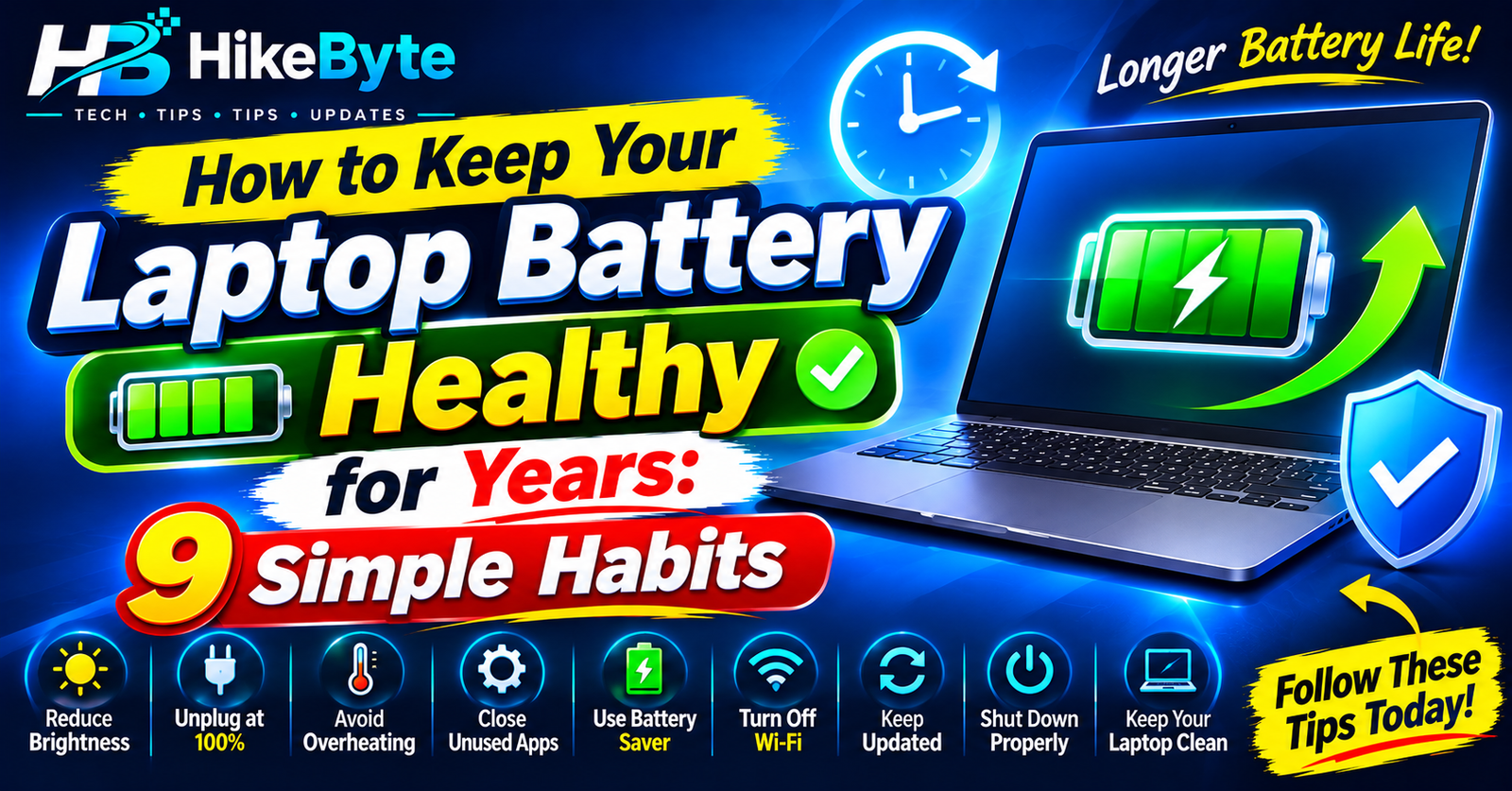
Does your laptop battery drain faster than it used to? Do you find yourself always hunting for a charger? You are not alone — but the good news is that a few simple habits can make a real difference.
Most laptops today use lithium-ion batteries. They wear out gradually with use, and that is normal. But how you charge and use your laptop every day decides whether the battery stays strong for years or fades quickly. Here are 9 habits that actually help.
1. Avoid Heat — It Is the Battery’s Worst Enemy
Heat damages batteries more than anything else. Keep your laptop off beds, blankets, and sofas that block its air vents, and never leave it in a hot car or in direct sunlight. If your laptop feels very hot during normal use, give it a break and let it cool down. A cooler laptop means a longer-lasting battery.
2. Don’t Obsess Over 100% — But Avoid Extremes
You do not need to unplug the moment you hit 100%. Modern laptops stop charging when full. But batteries are happiest when they are not constantly sitting at either extreme.
As a rough guide:
- Try not to let your battery drop to 0% regularly.
- If you can, keep it roughly between 20% and 80% for daily use.
- An occasional full charge or full drain is fine — just don’t make it a daily habit.
Don’t stress about perfect numbers. Avoiding the extremes most of the time is enough.
3. Use Battery Saver Mode
Windows has a built-in Battery Saver mode that reduces background activity and screen brightness when your battery gets low. Turn it on from Settings > System > Power & battery, or click the battery icon in the taskbar. It is an easy way to stretch your remaining charge without doing anything else.
4. Lower Your Screen Brightness
Your screen is usually the biggest battery drain. Lowering brightness even a little can add noticeable time. Use the brightness keys on your keyboard or the slider in quick settings, and turn on automatic brightness if your laptop supports it.
5. Close What You Are Not Using
Every open program and browser tab uses power — especially video calls, games, and heavy websites. Close apps you are not using, and keep your browser tabs under control. If you notice your fan running loudly, something is working your laptop (and battery) hard.
6. Turn Off Features You Don’t Need
Bluetooth, Wi-Fi, and keyboard backlighting all sip power. If you are not using Bluetooth, switch it off. If you are working offline, you can even turn Wi-Fi off for a while. Small savings add up over a full day.
7. Keep Windows and Drivers Updated
Battery improvements often come through software updates. Go to Settings > Windows Update and install pending updates, and check your laptop maker’s app (like Lenovo Vantage, HP Support Assistant, or Dell Update) for battery and BIOS updates. These sometimes include fixes that directly improve battery life.
8. If You Mostly Use It Plugged In, Help the Battery Rest
If your laptop spends most of its life on a desk plugged in, check whether your laptop maker offers a battery charge limit (often called “battery conservation mode” or similar). Setting a limit of around 60–80% for plugged-in use reduces wear over months and years. Not every laptop has this option, but many do — check your maker’s settings app.
9. Store It Right If You Won’t Use It for a While
Going away for weeks? Don’t store the laptop fully charged or fully empty — around 50% is ideal. Keep it in a cool, dry place. A battery left at 0% for months can become very hard to revive.
How to Check Your Battery’s Health
On Windows, you can generate a battery report in a minute:
- Right-click the Start button and open Terminal (or search for cmd).
- Type
powercfg /batteryreportand press Enter. - Open the report file it creates — it shows your battery’s original capacity versus its current capacity.
If your current capacity is much lower than the original (for example, under 70–80%), the battery is worn and a replacement may be worth considering.
When Should You Replace the Battery?
Consider a replacement if your laptop dies very quickly even after these habits, shuts down suddenly at 20–30%, or the battery is swollen (stop using it and get it replaced right away — a swollen battery is a safety issue). For most laptops, a replacement battery is far cheaper than a new laptop.
Final Thoughts
Battery health is not about one magic trick — it is about small, everyday habits. Keep it cool, avoid the extremes, use battery saver, and close what you don’t need. Do that, and your laptop battery will serve you well for years.
Related reading on HikeByte: [How to Speed Up a Slow Laptop in 2026] · [SSD vs HDD: What’s the Difference and Which Should You Buy?] · [What Is a VPN and Do You Really Need One?]
(Link these once the related posts are published.)
Frequently Asked Questions
Is it bad to leave my laptop plugged in all the time?
Modern laptops stop charging at 100%, so it is not dangerous. But for long-term health, using a charge limit (around 60–80%) is better if your laptop offers one — and avoid heat while plugged in.
Should I let my battery drain to 0% before charging?
No. That was advice for very old battery types. For today’s lithium-ion batteries, frequent full drains actually wear them out faster. Charge when convenient, ideally before it gets very low.
Does fast charging damage the battery?
Fast charging creates a bit more heat, which adds wear over time, but the effect is small for most users. If you are not in a hurry, standard charging is gentler.
How long should a laptop battery last?
Most laptop batteries stay healthy for around 3–5 years of regular use, depending on habits and heat. After that, capacity gradually drops — which is normal.
Can a software update really improve battery life?
Yes, sometimes. Updates can fix bugs that drain power and improve how Windows manages background apps, so keeping your system updated is worth it.
Leave a Reply